Unity Save Editor
A free Unity game save editor that runs entirely in your browser. Open the PlayerPrefs a Unity game stored on your computer, exported from the Windows registry as a .reg file or copied from macOS as a .plist, or the game's own JSON save file. Change the values, and download a file the game can read again.
Not uploaded, then deleted later. Never transmitted at all. Your file stays in this browser tab.
Open and edit your Unity save
Also takes .save, .dat, .txt, Linux prefs and files with no extension. The contents decide the format.
- 1Plain JSON JsonUtility, Newtonsoft
- 2Windows
.regexport - 3macOS
.plistbinary or XML - 4Linux
prefs
No file handy? Open a sample:
Keep a copy of the original first. For the registry, the .reg you export is your backup: keep it unedited.
Reading the file…
What was tried:
Still have the original copied somewhere? Keep it until the game loads the edited one.
Review changes
What it looks like on real Unity save data
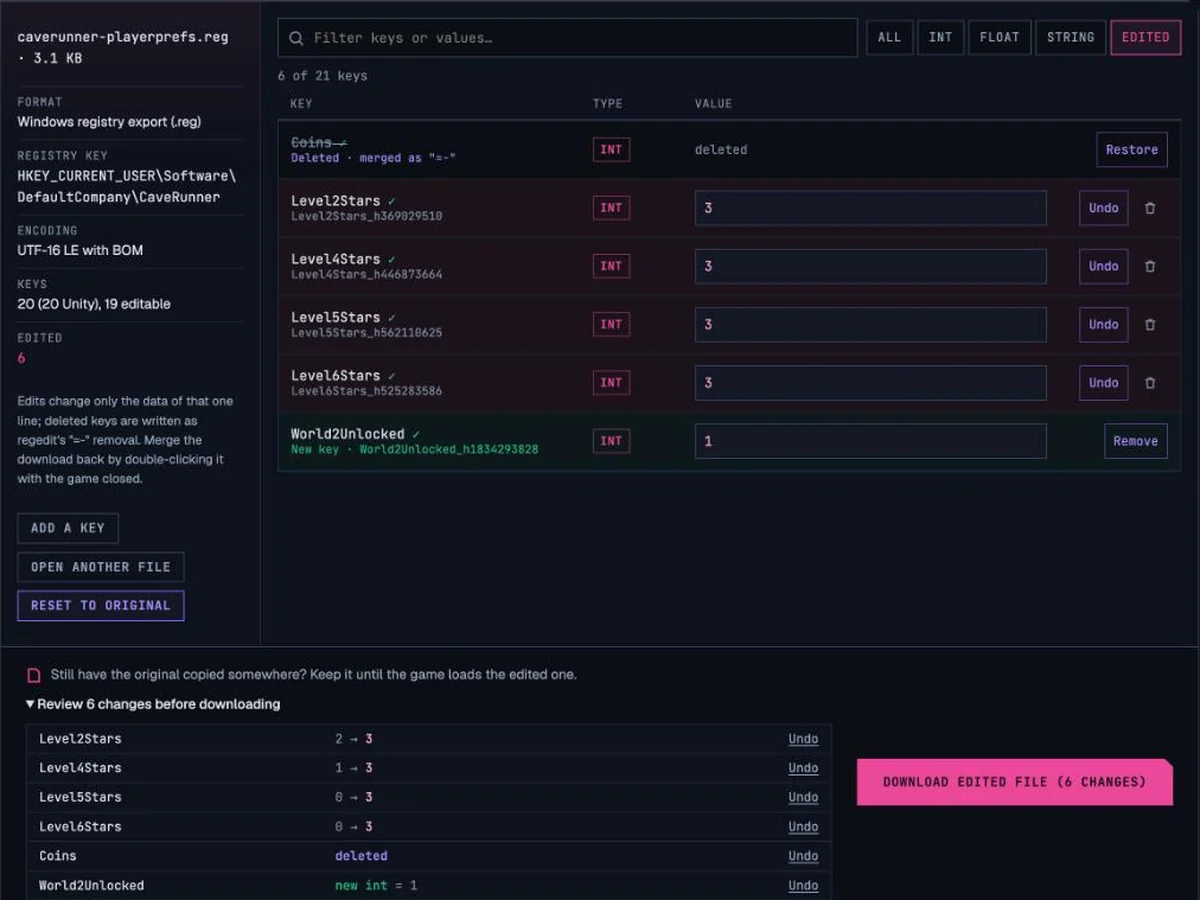
.reg export: six per-level star counts set to 3 in one step, one key deleted, one added, and every change listed before download.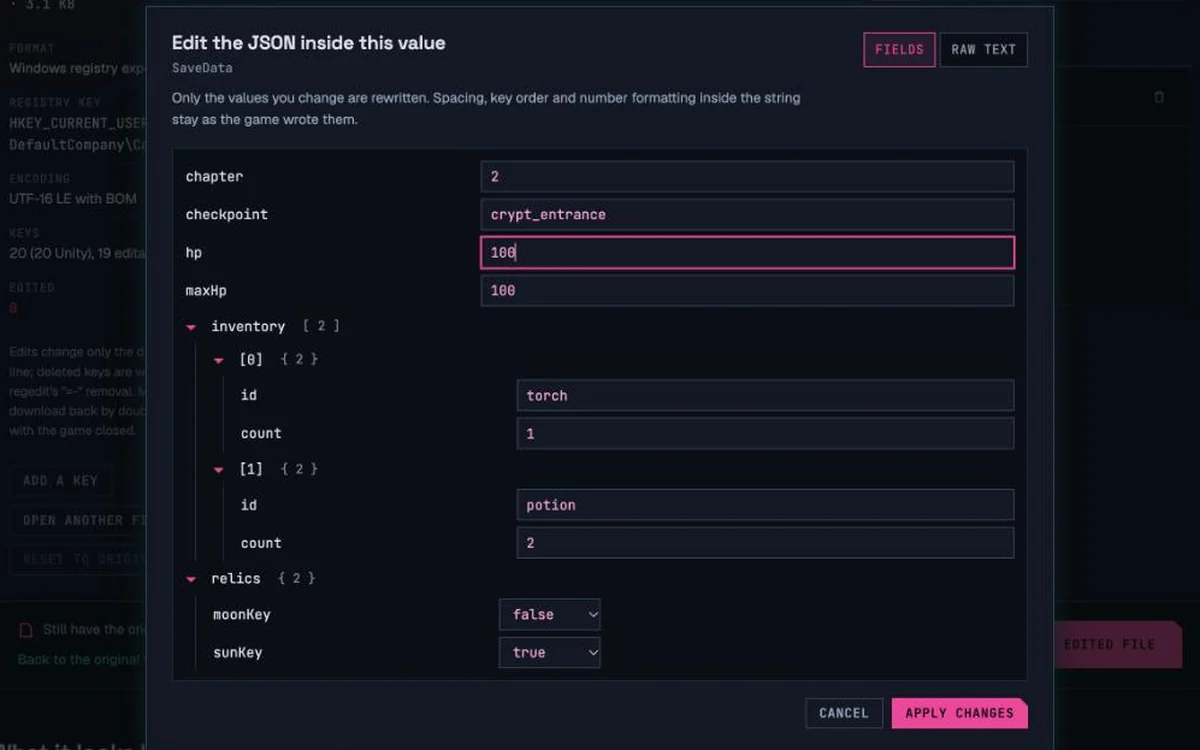
SaveData key holding JsonUtility JSON, opened as a form instead of one long string.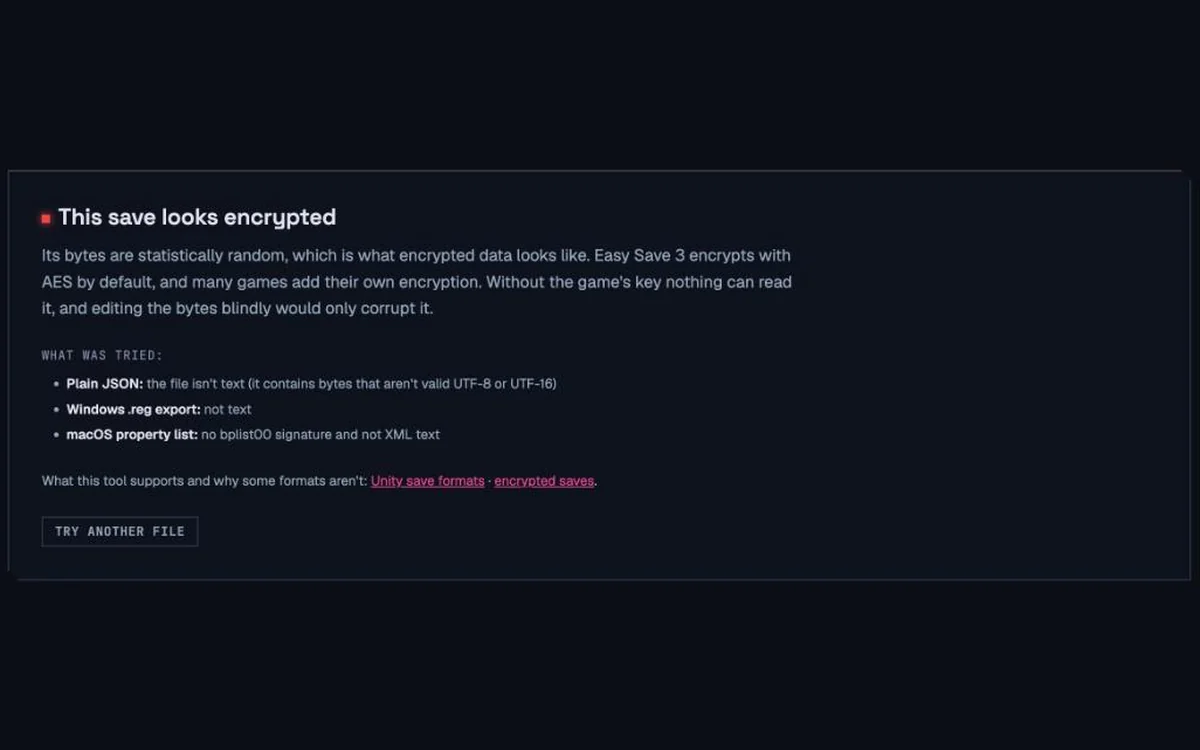
Why No Two Unity Games Save the Same Way
Unity gives developers a few ways to persist data and no single save format, so the honest first question is which one your game picked.
An RPG Maker game always saves the same kind of file, because the engine writes it. Unity doesn't. It hands developers a small key-value store called PlayerPrefs and leaves everything else to them. So one Unity game keeps your unlocked levels in the Windows registry, the next writes a tidy JSON file, and a third runs its data through an encryption plugin before it ever touches the disk. Search results that list every extension Unity games use, with a note that "support can vary," are describing this problem without explaining it.
In practice, almost every Unity save is one of four things. PlayerPrefs stores ints, floats and strings under named keys, which is why it shows up for volume settings, high scores, "tutorial seen" flags and, in smaller games, the entire save. JsonUtility.ToJson (or Newtonsoft's equivalent) turns the game's own C# classes into JSON text, which the developer writes to a file; you'll recognise it by opening the file in Notepad and seeing {"level":3,…}. Easy Save is a popular Asset Store plugin that also writes JSON-like data but encrypts it by default. And .NET's BinaryFormatter writes C# objects as raw binary, which Microsoft has since deprecated as unsafe but older games still ship.
| How the game saves | What you'll find | Here |
|---|---|---|
| PlayerPrefs | Registry values, a .plist, or a prefs file | Yes |
| JsonUtility / Newtonsoft | Readable .json, .save or .dat | Yes |
| Easy Save 3, unencrypted | .es3 that reads as JSON | Yes |
| Easy Save 3, encrypted (default) | Random-looking bytes | No |
| BinaryFormatter | Binary that mentions Assembly-CSharp | No |
| Custom encryption | Random-looking bytes or base64 | No |
Compressed or base64-wrapped JSON is detected and handed to the JSON Save Editor, which unwraps those layers.
What PlayerPrefs Actually Is, and Why It Moves Between Operating Systems
PlayerPrefs isn't a file format at all. It's an API: the game calls PlayerPrefs.SetInt("Level", 3), and Unity hands the value to whatever storage the operating system already uses for application settings. On Windows that's the registry, under HKEY_CURRENT_USER\Software\[company]\[product]. On macOS it's the same preferences system every Mac app uses, which ends up as a property list in ~/Library/Preferences. On Linux Unity writes its own small XML file under ~/.config/unity3d. Same three lines of game code, three completely different places on disk.
Each platform adds its own quirks, and an editor has to get all of them right or it writes back something Unity can't read. On Windows, every value name gets a suffix like _h218262515, a hash of the key. Ints are 32-bit DWORDs. Floats are stored as 8-byte doubles under a DWORD label, which is why regedit calls them invalid. Strings are not registry strings at all but binary UTF-8 ending in a zero byte. On macOS the plist on disk is usually binary, not the XML you'd see in a tutorial, and the system keeps a cached copy in memory.
Why you export it first
A web page can't read your registry or browse your Library folder, and you shouldn't trust one that claims it can. So for the registry, you export the game's key to a .reg file with regedit, edit that, and merge it back with a double-click. For macOS and Linux the preferences already are a file, so you copy it out and put it back. It's one extra step compared with a desktop tool, and the price of never giving a website access to anything you didn't hand it yourself.
How to Edit a Unity Save, Step by Step
A worked example: a game saved your progress with PlayerPrefs.SetInt("Level", 3), and you want to skip ahead to level 10.
Quit the game completely
Unity holds PlayerPrefs in memory while the game runs and writes them out when it quits, so an edit made while the game is open gets overwritten. Close it, and on Steam wait until it no longer shows as running.
Get the data into a file
On Windows, press Win+R, type
regedit, go toHKEY_CURRENT_USER\Software\[company]\[game], right-click the game's key and choose Export. On macOS, copy~/Library/Preferences/unity.[company].[game].plistto your desktop. If the game keeps a JSON save instead, it's usually in%USERPROFILE%\AppData\LocalLow\[company]\[game]on Windows.Open the file here
Drop it on the editor above. The tool reads the contents to decide the format, so it doesn't matter whether the file ends in
.reg,.plist,.jsonor nothing at all. The panel on the left says what it found and how many values it read.Change Level from 3 to 10
Type
Levelin the filter box. A game that calledPlayerPrefs.SetInt("Level", 3)shows a row named Level marked INT with the value 3; in the .reg file that line readsLevel_h218262515=dword:00000003. Change it to 10. Floats and strings work the same way, and the field refuses anything the type can't hold."Level_h218262515"=dword:00000003"Level_h218262515"=dword:0000000aDownload and put it back
Download Edited File re-reads the result and compares every value before it saves. On Windows, double-click the downloaded .reg and confirm the merge. On macOS, run
defaults import unity.[company].[game]followed by the path to the edited plist, so the preferences cache picks up the change. Then start the game.
Keys Unity Adds by Itself, and Which Ones Matter
Open almost any Unity game's PlayerPrefs and you'll find keys the game's developer never wrote. They belong to the engine. Knowing them saves you from editing the wrong thing.
| Key | What it holds | Safe to change? |
|---|---|---|
Screenmanager Resolution Width / Height | The window or screen resolution the game last ran at. | Yes. A useful fix when a game launches at a resolution your monitor can't show. |
Screenmanager Fullscreen mode | Fullscreen, borderless or windowed, as a number. | Yes. Set it to 3 (windowed) to escape a fullscreen game that opens off-screen. |
UnityGraphicsQuality | The index of the quality preset in the game's quality list. | Yes, within the number of presets the game has. |
unity.player_sessionid, unity.player_session_count, unity.cloud_userid | Engine analytics identifiers and a launch counter. | Leave them. They don't hold progress. |
| Everything else | Keys the developer chose: Level, Coins, HighScore, SaveData… | This is where progress lives. Back up first. |
On Windows every one of these carries the _h hash suffix too. Unity's own value UnityGraphicsQuality_h1669003810 is a handy way to confirm you're looking at the right registry key.
Unity Save Editing: Questions
Which games it works for, what it won't touch, and where the files are.
It depends on how the developer chose to save, not on Unity itself. If the game uses PlayerPrefs (common for settings, unlocks and small progress counters), yes. If it writes a readable JSON file, also yes. If it uses Easy Save with encryption, .NET BinaryFormatter, or its own encrypted format, no, and the tool tells you which of those it recognised rather than pretending. Many games mix two: settings in PlayerPrefs and the real progress in a file, so if one doesn't have what you want, check the other.
Yes. Many Unity games save everything with one call like PlayerPrefs.SetString("SaveData", JsonUtility.ToJson(data)), so the registry or plist holds a single long string. The editor recognises a string that contains JSON, labels it JSON, and its Edit JSON button opens the fields inside as a form. Only the values you change are rewritten inside the string, so the game's own formatting survives, and the result is checked as valid JSON before it's applied.
Yes, for .reg and .plist files. Add a key creates it with the right type and, on Windows, the hashed name Unity expects, such as World2Unlocked_h1834293828. Deleting works differently per format. In a .plist the key is removed. A .reg merge never removes a value just because its line is missing, so the editor writes regedit's removal syntax, "name"=-, which deletes the value when you merge the file. Linux prefs files support value edits only.
No. Easy Save 3 encrypts with AES by default, and plenty of games add their own encryption or a checksum on top. Encrypted bytes can't be read without the game's key, and changing them blindly only produces a file the game rejects. When you open one, the tool says it looks encrypted instead of showing garbage. Easy Save files saved without encryption are plain JSON and open normally.
You need the company and product name the developer set in Unity, which is usually the studio and game name. PlayerPrefs live in the Windows registry at HKEY_CURRENT_USER\Software\[company]\[product], on macOS in ~/Library/Preferences/unity.[company].[product].plist, and on Linux in ~/.config/unity3d/[company]/[product]/prefs. Save files the game writes itself normally go in Unity's persistent data folder: %USERPROFILE%\AppData\LocalLow\[company]\[product] on Windows, ~/Library/Application Support/[company]/[product] on macOS, and ~/.config/unity3d/[company]/[product] on Linux.
No, not even temporarily. Some online save editors upload your file to their server and promise to delete it after a day; this one never sends it at all. Reading, editing and rebuilding happen inside your browser tab, and the file only exists in your computer's memory until you download the result. You can confirm it: open your browser's developer tools, watch the Network tab while you load and download a file, and no request carries it.
First make sure the game was fully closed while you edited, since a running game writes its own PlayerPrefs over yours when it quits. On macOS, a plist copied straight into ~/Library/Preferences can be ignored because the system caches preferences; use defaults import instead. If the change still doesn't stick, the game may store the same value somewhere else too, or check it against a hash, and resets it. Put your backup back and try a smaller change. The tool's own checks confirm the file is well-formed; they can't know what values a particular game accepts.
Unity adds it. On Windows, PlayerPrefs.SetInt("Level", 3) is stored as a registry value named Level_h218262515, where the number is a hash of the key name. The editor recalculates that hash for every value and shows the clean key, Level, with a check mark when it matches, so you can tell Unity's own keys apart from anything else under the same registry key.
Because Unity stores a float as an 8-byte double while labelling it as a 4-byte DWORD, and regedit can't display that, so it reports an invalid DWORD and exports it as hex(4). Nothing is wrong with the value. This editor reads those 8 bytes as the number Unity saved, shows it as a normal decimal like 0.75, and writes your edit back in the same 8-byte form.
Not in this version. WebGL games keep PlayerPrefs in the browser's IndexedDB storage for that site, Android keeps them in an XML file inside the app's private data folder, and iOS keeps them inside the app's container. None of those can be reached without developer tools or a rooted or jailbroken device. If you do get a JSON save out of one, it opens here like any other JSON save.
How It Was Tested
The macOS test files were written by macOS itself, through the same preferences API Unity's Mac player uses, and every edited plist is checked with Apple's own plutil. The registry files follow regedit's exact export layout: UTF-16 with a byte-order mark, Windows line endings, 80-column hex wrapping. Unity's real value names, including UnityGraphicsQuality_h1669003810, verify against the hash. An automated suite runs the editor's real worker and confirms that an unedited download is byte-identical in every format. It also confirms that changing Level alters exactly one line of a .reg file, and that encrypted, BinaryFormatter and compressed files are each named correctly instead of opening as nonsense.
- Formats round-tripped
- 5
- 20,000-key .reg
- opens in 0.1 s
- 17.5 MB JSON, 1.5M values
- opens in 0.5 s, no frame over 30 ms
- Bytes sent anywhere
- 0
- One edit, rest of file
- byte-identical
- Refused by name
- BinaryFormatter, encrypted, gzip, base64
Timings measured in desktop Chrome, October 2026, with the page's real background worker.
Changelog
- v1.1. Edit JSON stored inside a PlayerPrefs string as a form. Add and delete keys (deletes in a .reg are written as regedit's
=-removal). Set every filtered key at once. Review every change before download, Ctrl/⌘+S to download, and paste text instead of choosing a file. - v1.0. First release: Windows .reg, macOS binary and XML plist, Linux prefs and plain JSON, with named refusals for encrypted, BinaryFormatter and compressed saves.